MustardOS Introduction
MustardOS (muOS) is an operating system (or “custom firmware”) for handheld devices like the Anbernic RG35XXSP.
In this page, I’ll try to explain (roughly) what it is and how to set it up because I’ve found some of the existing guides and documentation lacking, and I want to prevent people from facing the same frustrations I did.
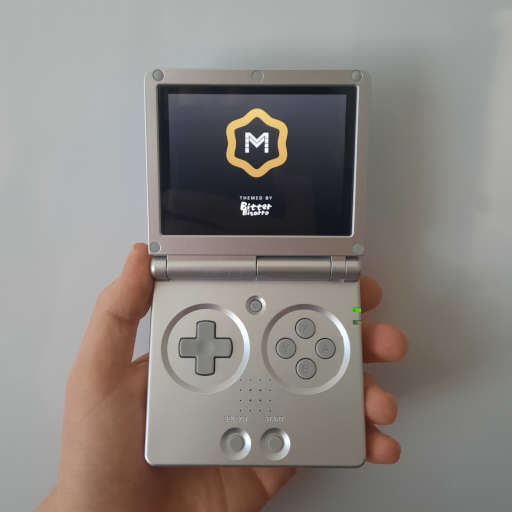
Custom firmware
In the world of gaming handhelds, custom firmware (CFW) is a firmware (operating system) made by the community that replaces the stock firmware provided by the manufacturer. In most cases, they are custom embedded Linux images that are flashed to the SD card with the devicetree and settings preconfigured to work well with a particular console.
In general, custom firmware is better maintained than stock firmware and better supported by third-party tools such as PortMaster. Spending 90 minutes setting up CFW is annoying, but it can be worth it if you want to play ports, use a cool theme, or otherwise enjoy tinkering with your device.
Common CFW images
- MustardOS (muOS): A featureful frontend for handheld consoles.
-
MinUI: A
minimal frontend for handheld consoles.
- Unfortunately, MinUI is no longer maintained.
-
ROCKNIX: An
immutable Linux distribution for handhelds.
- ROCKNIX has been around for a fairly long time.
- Unlike the others, it includes a package manager, and it runs a desktop frontend rather than a custom embedded frontend.
- GammaOS: An Android-based operating system for handhelds.
Of all of these options, muOS provides the best experience out of the box, and it is hard for me to recommend anything else unless you plan on more-or-less building your own firmware image.
Backing up your data
If you have anything important on your microSD card, you should back it up to your computer. This is especially important if you want to transfer your save files. Otherwise, you can skip this step.
Finding a microSD card
Most cheap microSD cards will fail within a few months and corrupt a bunch of of your data, and that can be a frustrating way to lose 20 hours of progress in a game. Therefore, I would strongly recommend investing in a high-quality microSD card rather than using the one that shipped with your device.
Purchasing tips
- Spend at least $30 CAD on your card.
- Pick a reputable brand such as Samsung, Lexar,
Kingston, or PNY.
- SanDisk is reputable as well, but their cards often fail in my experience, and Matt Cole has had similar experiences in his testing.
- Although Amazon Basic microSD cards tested well with Matt Cole’s setup, I’ve tried six of them at this point, and every one died within a week. Proceed with caution.
- Generally, “high-endurance” cards are more durable than “high-performance” cards, but they also cost more.
- Buy from the manufacturer’s website or from trusted retailers. There are counterfeit microSD cards on the market that tend to lose data quickly. (Unfortunately, I know this first-hand.)
- Buy a card with more storage than you need (e.g., if you need 64 GB, purchase a 128 GB card). High-capacity cards can generally handle more writes before running into issues
Matt Cole has a website where he stress tests various microSD cards, and “KrackSmellin” on Reddit summarized his results in a comment. I’ve had good experiences with the Samsung PRO Endurance products, but the Kingston Canvas Select Plus products are apparently great as well.
Installing muOS
MuOS has an official install guide you can follow. In general, the steps are as follows.
- Open the Supported
Devices page and download the Full Image for your
device.
- Note that your device must be supported to use muOS.
- I’d recommend using the torrent if you’re comfortable with torrenting.
- Plug your device’s microSD card into your computer.
- Flash the image to your microSD card using a tool like the Raspberry Pi Imager.
- Plug the microSD card into your handheld, turn it on,
and follow the installation instructions.
- If nothing happens, you might need to hit the reset button or (re)connect the power source.
Configuring settings
You may wish to configure your system. I’ll mention a few settings you might want to change.
Connectivity
Configure your network if you’d like.
- Open Settings -> Connectivity -> Wi-Fi Network
- Enter connection details
More information about Connectivity is in the documentation.
Interface Options
If you used a non-standard folder naming, you may wish to reformat them.
- Open Settings -> Interface Options
- Toggle Friendly Folder Names
Customisation
By default, muOS will automatically launch the most recent save state of your game when you launch it unless you hold the A button. If you’d prefer to start it fresh (e.g., to see the bootup screen + menu), set Content Save State Launch to “Hold A”.
- Open Settings -> Customisation
- Toggle Content Save State Launch
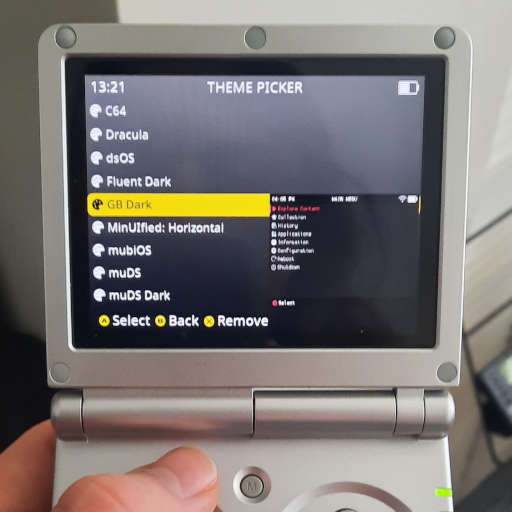
MuOS ships with a good default theme, but there are a variety of alternate themes to choose from. My favourite is the “Analogue” theme. If you have network connectivity, you can download themes and try themes directly from the settings menu.
- Open Settings -> Customisation -> Theme Picker -> Theme Download
- Look through the various themes.
-
Tip: You can use the L / R buttons to move by page.
- Press A to download a theme you’d like.
- Press B to return to the theme picker.
- Press A to select the theme you downloaded.
More information about Customisation is in the documentation.
Storage
By default, muOS stores everything on one SD card. This is fine for most people, but if you’d like to store certain data (e.g., save files) on a SD card separate from the rest of the OS, that can be configured.
- Open Settings -> Customisation -> Storage
- Toggle any items you’d like to move to the secondary SD card.
Doing this allows you to flash a new installation of muOS to the cartridge without losing your ROMs, saves, themes, activity (play time) data, etc., and it splits the load across two SD cards which might reduce the risk of issues.
More information about Storage is in the documentation.
Advanced Settings
By default, muOS turns the power LED off during play. Personally, I prefer to have it on.
- Open Settings -> General Settings -> Advanced Settings
- Toggle LED During Play.
More information about Advanced Settings is in the documentation.
Installing ROM files
Obtaining ROM files
Unfortunately, the only legal way to obtain most ROMs is to purchase physical copies of the games and dump them yourself. Even then, that only applies if the game can be dumped without bypassing DRM.
If you are comfortable with torrenting, the MiNERVA Archive is a useful resource. Of course, you should not use the torrents there because starting them will download the ROMs to your computer, and that would be awful. :-)
Installing ROM files
MuOS will detect your ROMs regardless of your directory structure as long as they are in /ROMS, but I have included a few path suggestions below. You will need to create the folders yourself and add your desired ROMs.
| Platform | Path | Formats |
|---|---|---|
| Neo Geo | /ROMS/Arcade | .ZIP |
| Game Boy (GB) | /ROMS/Game Boy | .GB |
| Game Boy Color (GBC) | /ROMS/Game Boy Color | .GBC |
| Game Boy Advance (GBA) | /ROMS/Game Boy Advance | .GBA |
| Nintendo 64 (N64) | /ROMS/Nintendo 64 | .Z64 |
| PlayStation (PS) | /ROMS/PlayStation | .CHD |
Handling multi-file ROMs
Occasionally, you may run into a game that has multiple ROM files. In cases like this, you’ll need to add an M3U file in the same directory as the ROMs with the locations of all files needed for the emulator to load the game. I’ve included an example below.
Final Fantasy VII (USA) (Disc 1).chd
Final Fantasy VII (USA) (Disc 2).chd
Final Fantasy VII (USA) (Disc 3).chd
Applying patches
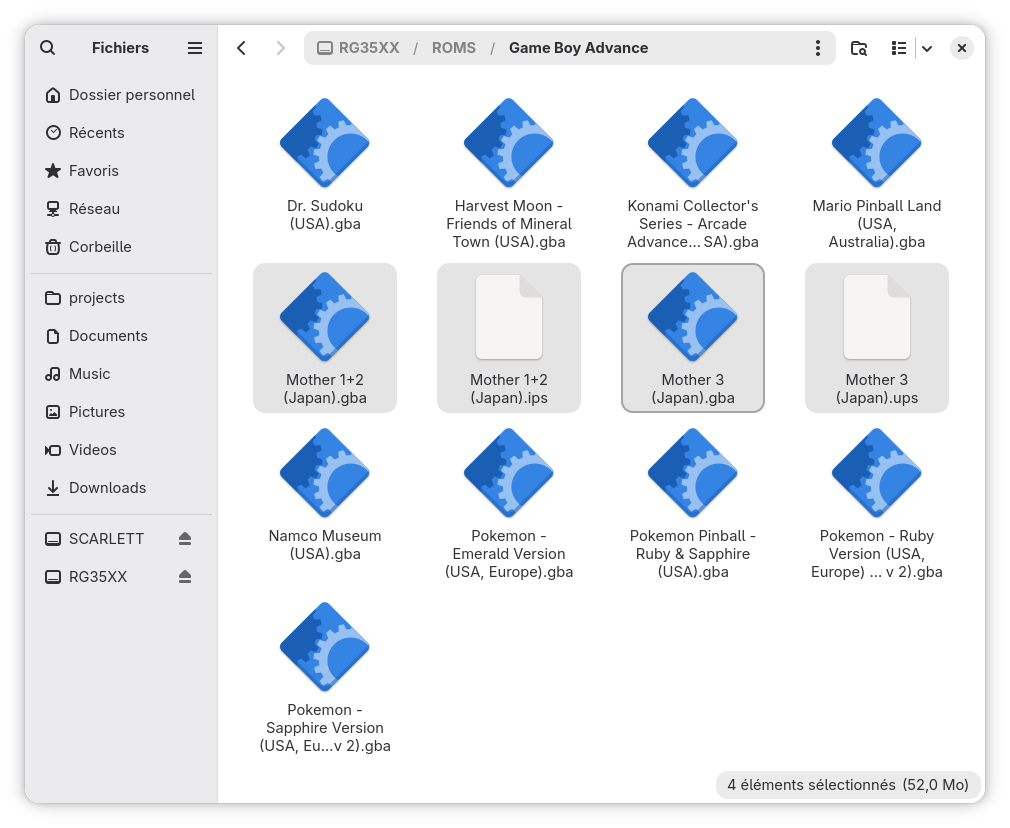
In most cases, ROMs can be patched by including the patch file in the ROM folder with the same name as the original ROM. This can be useful for applying fan translations.
Installing BIOS files
Obtaining BIOS files
As with the ROMs, BIOS files can be found on the MiNERVA Archive.
Installing BIOS files
BIOS files are software that is included on a console itself. Most emulators are capable of playing games without these nowadays, so this isn’t strictly necessary, but you might want to install them anyway for full accuracy (e.g., to see the Game Boy Advance logo when you start a game in mGBA).
- Open the BIOS Information Hub.
- For each libretro core you plan on using, click “BIOS
information” and obtain the listed BIOS files.
- The default libretro cores used for each system in muOS are listed in this overview.
- Move your BIOS files to the /MUOS/bios directory on your SD card.
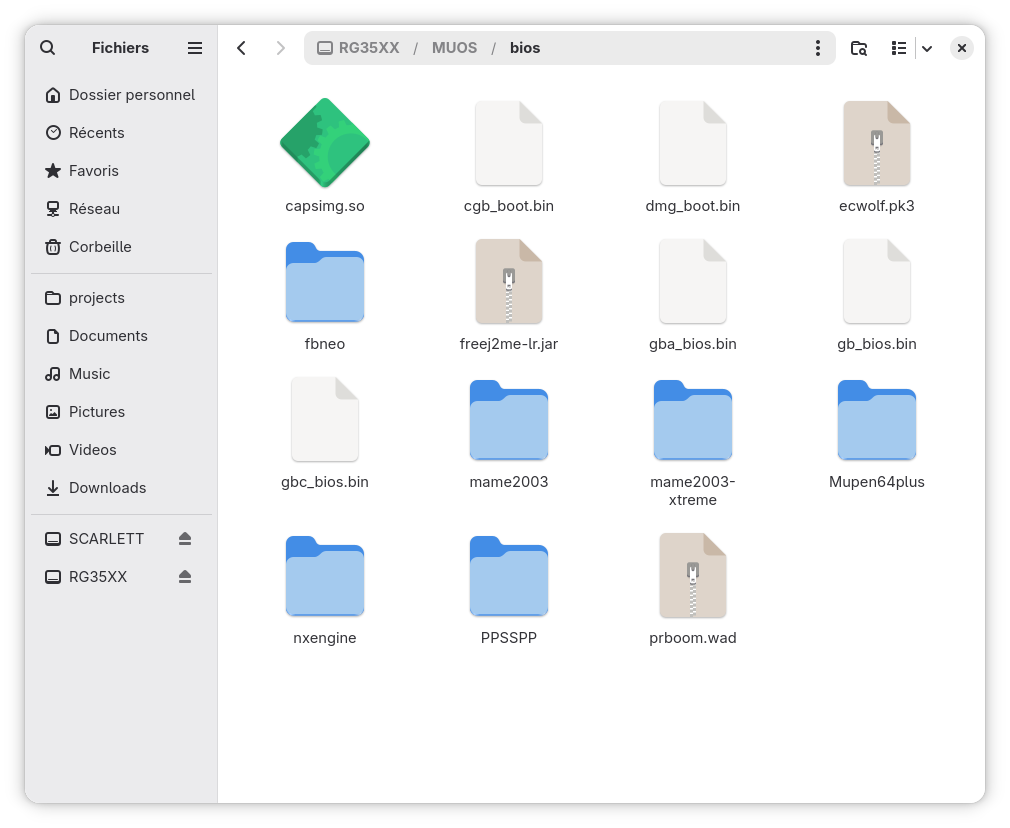
Note that FinalBurn Neo will expect BIOS files (e.g., neogeo.zip) in /ROMS/Arcade rather than /MUOS/bios.
Migrating previous saves
If you have existing save data, you’ll probably want to copy it over. Save data for most cores is kept in /MUOS/save. For each file, you’ll want to do the following steps.
- Find the save folder for the relevant libretro core (e.g., /MUOS/save/file/mGBA for the Game Boy Advance)
- Name your save file such that it matches the name of your ROM file, but keep the file extension the same. (e.g., “Dr. Sudoku (USA).gba” -> “Dr. Sudoku (USA).srm”).
Now, when you start the game in muOS, your previous save should be available. However, this might not work if the save files are incompatible between emulators (or something).
Adding previews
If you would like to add preview images for your ROMs, you can generate them with a tool called Scrappy. Unfortunately, this takes a bit of fiddling around.
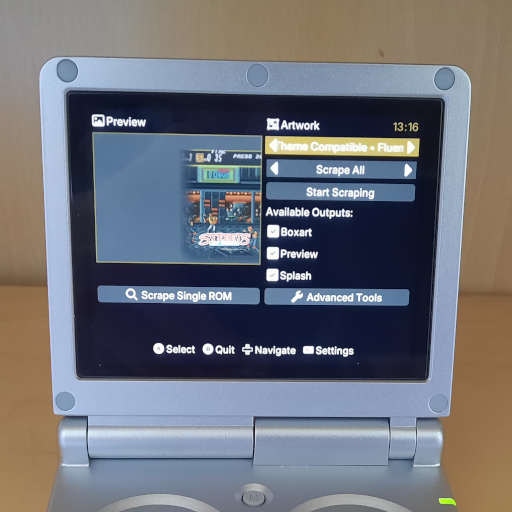
- Register an account on SCREENSCRAPER.
- Download the latest release from GitHub (e.g., Scrappy_v8.0.5.muxapp).
- Move the file to the /ARCHIVE directory on your microSD card.
- Open the Archive Manager and select the file to install Scrappy.
- Open Scrappy, press SELECT to open settings, and enter your SCREENSCRAPER credentials.
- Choose a preset you like, click “Start Scraping”, and wait for it to finish.
- Exit Scrappy, browse your games, and you should now see image previews.
Usage notes
At this point, you are pretty much good to go. Here are a few notes.
Adding favourites
If you have a large ROM library, muOS lets you add certain games to a separate “collection”. This can be useful if you tend to play the same few games and don’t want to dig through your library every time.
- Browse to the game
- Press Y (Collect)
- Press A (Add)
Opening the menu
Unlike most other firmware, pressing the menu key will not open the menu. Instead, it is a hotkey button that you press in combination with another button to perform various actions. Press Menu + X to open the menu.
Installing ports
PortMaster is installed by default, and if you have network connectivity, you can use it to install ports of certain PC games (e.g., Cave Story) to your handheld. Note that many games will require data from an original installation of the game, and you can find the instructions for this on PortMaster’s website.
Have fun
At this point, you should be pretty much good to go. Good luck!
Other resources
- MustardOS: The muOS website
- muOS Complete Setup Guide (ROMs, BIOS, Box Art, Tweaks) - BEST CFW for the RG35XX Series!: A YouTube installation guide